No recent searches
Popular Articles

How do I connect my iPad/iPhone to my TV?
Created by Paul Schwarz, Modified on Wed, 10 Sep, 2025 at 11:33 AM by Paul Schwarz
Playing ARWell or ARWell PRO on a big screen is more immersive and fun, so here are a couple of ways to make that happen!
Option 1: Screen mirroring using AirPlay
1. Swipe down from the upper-right corner of the screen to reveal the device's control center.
2. Tap the Screen Mirroring button.
3. Select your Apple TV or AirPlay 2-compatible smart TV from the list.
4. If an AirPlay passcode appears on your TV screen, enter the passcode on your device.
Note: The iOS device and Apple Airplay device must be on the same Wi-Fi network. There may be a bit of lag when using this option to connect to a larger screen.
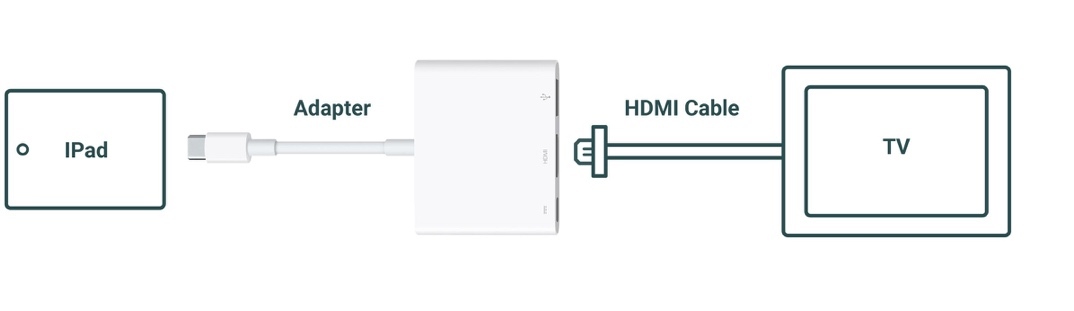
Option 2: Adapter and HDMI Cable
1. Plug the adapter (dongle) into your iOS device.
2. Plug one end of the HDMI cable into the adapter and the other end into the TV.
3. Plug a charger (not shown) into a wall outlet, and the other end into the adapter.
4. Select the appropriate HDMI input channel on your TV.